PRODUCTIVITY TOOLS SUB-STRAND
2.1: Word Processing
What is Word Processing?
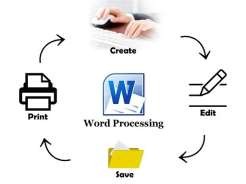
Word processing involves using computer software to create, edit, format, store, retrieve, and print text-based documents. It has revolutionized how we produce written communication, offering far more flexibility and features than traditional typewriters.
Importance of Word Processing in Document Production
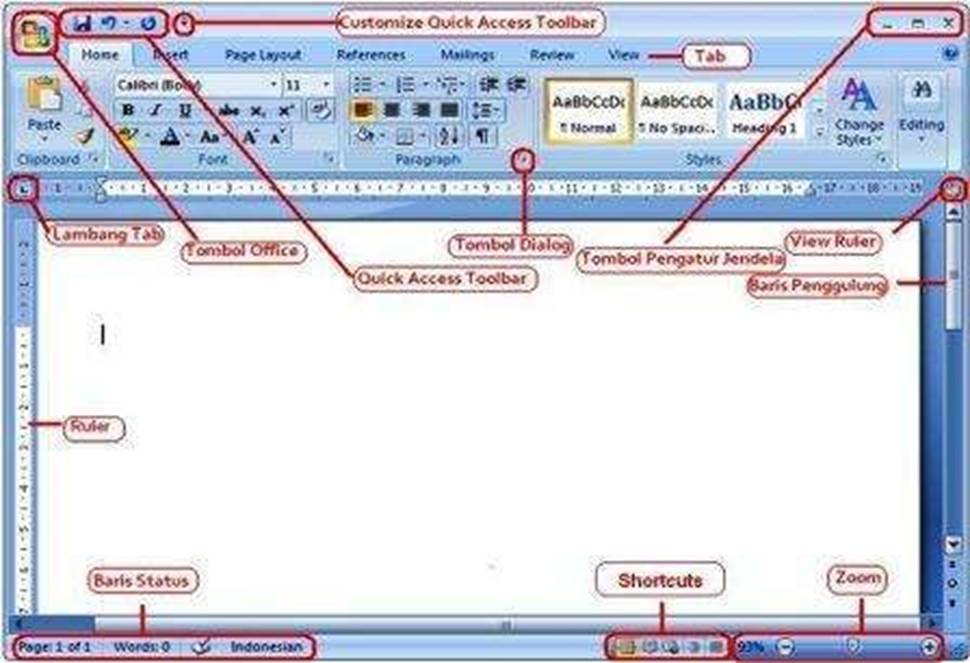
- Efficiency: Speeds up the process of creating and editing documents. Mistakes can be easily corrected without retyping entire pages.
- Flexibility: Offers a wide range of formatting options to enhance the appearance and readability of documents (fonts, sizes, colors, alignment, etc.).
- Organization: Facilitates the organization of text using features like headings, bullet points, numbering, tables, and sections.
- Professionalism: Enables the creation of professional-looking documents for various purposes (reports, letters, essays, etc.).
- Collaboration: Many word processors offer features for collaboration, such as track changes and comments, allowing multiple users to work on the same document.
- Storage and Retrieval: Documents can be saved electronically, making them easy to store, organize, and retrieve as needed.
- Sharing: Documents can be easily shared electronically through email, cloud storage, or printing.
- Advanced Features: Offers tools like spell checkers, grammar checkers, thesaurus, mail merge, and more to improve document quality and efficiency. Selecting a Word Processing Productivity Tool
Several word processing applications are available, each with its own strengths and features. Some popular options include:
- Microsoft Word: A widely used commercial word processor with a comprehensive set of features.

[Microsoft Word logo]
- Google Docs: A free, web-based word processor that allows for real-time collaboration.

[Google Docs logo]
- LibreOffice Writer: A free and open-source word processor, part of the LibreOffice suite.
[LibreOffice logo]
- Apache OpenOffice Writer: Another free and open-source word processor.

[Apache OpenOffice logo]
- WPS Office Writer: A free (with paid upgrades) word processor with a userfriendly interface.

[WPS Office logo]
The choice of tool often depends on factors like cost, required features, ease of use, and the need for collaboration.
Creating a Text Document Using Word Processing Productivity Tools
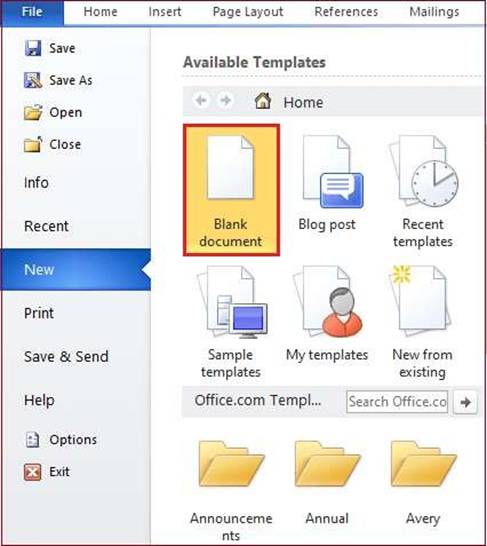
The basic steps for creating a text document generally involve:
- Launching the Word Processor: Opening the chosen application. [Screenshot of a word processing application window opening.]
- Typing Text: Entering the content of the document using the keyboard.
[Screenshot showing text being typed in a word processing document.]
- Saving the Document: Storing the document electronically with a chosen filename and format (e.g., .docx, .doc, .odt, .pdf). [Screenshot showing the
“Save As” dialog box with options for filename and format.]
- Navigating the Document: Using the scroll bar, keyboard shortcuts (e.g., Ctrl+Home, Ctrl+End), or the navigation pane to move through the document.
- Closing the Document: Exiting the currently open document.
- Retrieving a Document: Opening a previously saved document. [Screenshot showing the “Open” dialog box for selecting a saved document.]
Formatting a Text Document
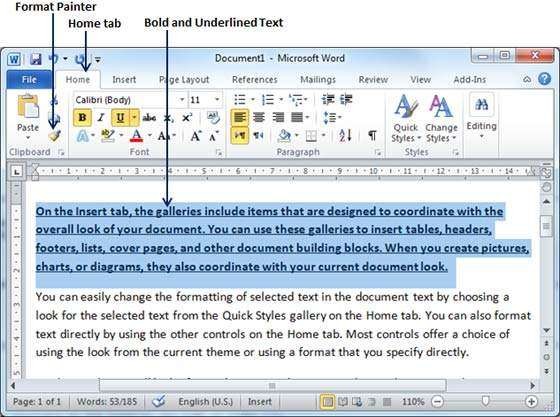
Formatting enhances the visual appeal and readability of a document. Common formatting features include:
Character Formatting:
- Font: Changing the typeface (e.g., Times New Roman, Arial).
- Font Size: Adjusting the size of the text.
- Font Style: Applying bold, italics, or underline.
- Font Color: Changing the color of the text.
- Highlighting: Adding color behind the text to emphasize it.
- Paragraph Formatting:
- Alignment: Aligning text to the left, center, right, or justified.
- Indentation: Moving the paragraph in from the left or right margin.
- Line Spacing: Adjusting the vertical space between lines of text.
- Paragraph Spacing: Adjusting the space before or after paragraphs.
- Bullets and Numbering: Creating lists with bullet points or sequential numbers.
- Borders and Shading: Adding borders around paragraphs or applying background color.
- Page Layout:
- Margins: Setting the blank space around the edges of the page (top, bottom, left, right).
- Paper Size: Selecting the dimensions of the paper (e.g., A4, Letter).
- Page Orientation: Choosing between portrait (vertical) and landscape (horizontal) layout. [Diagram illustrating portrait and landscape orientation.]
- Page Numbering: Adding sequential numbers to the pages of the document.
- Columns: Formatting text into multiple columns, like in a newspaper.
Using Editing Tools
Word processors provide tools to help improve the accuracy and quality of writing:
- Spell Checker: Identifies and suggests corrections for misspelled words.
[Screenshot showing a spell checker suggesting a correction.]
- Grammar Checker: Identifies and suggests corrections for grammatical errors. [Screenshot showing a grammar checker highlighting a potential error.]
- Thesaurus: Provides synonyms and antonyms for selected words. [Screenshot showing a thesaurus suggesting alternative words.]
- Auto-Complete: Suggests words or phrases as you type, speeding up the process.
- Auto-Correct: Automatically corrects common typing errors as you type. Inserting and Formatting Tables

Tables are used to organize data in rows and columns:
- Inserting a Table: Selecting the number of rows and columns needed.
[Screenshot showing the table insertion dialog box.]
- Entering Data: Typing information into the cells of the table.
- Formatting a Table:
- Borders and Shading: Adjusting the appearance of table borders and cell backgrounds.
- Cell Alignment: Aligning text within table cells.
- Merging and Splitting Cells: Combining multiple cells into one or dividing a cell into multiple cells.
- Adjusting Row Height and Column Width: Changing the size of rows and columns.
Inserting and Formatting Table of Figures and Table of Contents
For longer documents, these features help readers navigate:
- Table of Contents (TOC): An automatically generated list of headings and subheadings in a document, along with their corresponding page numbers.
This requires using heading styles consistently throughout the document. [Example of a Table of Contents.]
- Table of Figures: An automatically generated list of figures (images, charts, etc.) in a document, along with their captions and page numbers. This requires properly captioning figures. [Example of a Table of Figures.]
- Updating: Both TOC and Table of Figures can be automatically updated if changes are made to headings, captions, or page numbers.
Inserting Section and Page Breaks, Styles, Headers and Footers, Hyperlinks, Cross-Referencing
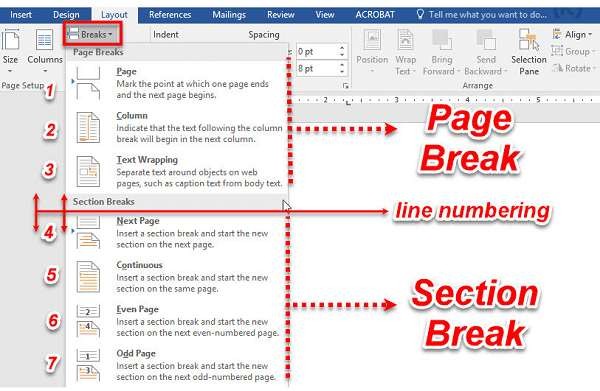
These features enhance document structure and navigation:
- Section Breaks: Divide a document into sections with different formatting (e.g., different column layouts or page numbering).
- Page Breaks: Force text to start on a new page.
- Styles: Pre-defined formatting options for headings, body text, etc. Using styles ensures consistency and makes formatting changes easier. [Example of a Styles pane in a word processor.]
- Headers and Footers: Text or graphics that appear at the top (header) or bottom (footer) of every page or specified pages (e.g., page numbers, document titles, dates). [Example of a header and footer in a document.]
- Hyperlinks: Clickable text or graphics that take the user to another location within the document, a web page, or another file. [Example of hyperlinked text.]
- Cross-Referencing: Links to specific elements within the document, such as figures, tables, or headings. If the page number of the referenced item changes, the cross-reference can be updated automatically.
Download complete notes Grade 10 Notes Senior School 2026